TrustDeckBETA Download
HEARTHSTONE. WITH YOUR PEOPLE.

Your friends.
Your meta.

Every match tells a story. TrustDeck brings together your experience and the players you trust, so your next deck is a more informed choice.

Installation guide

Windows 10 / 11 · 64-bit · No Python needed

Your data stays private. You choose who to share it with.
A LOOK INSIDE TRUSTDECKDESKTOP APP
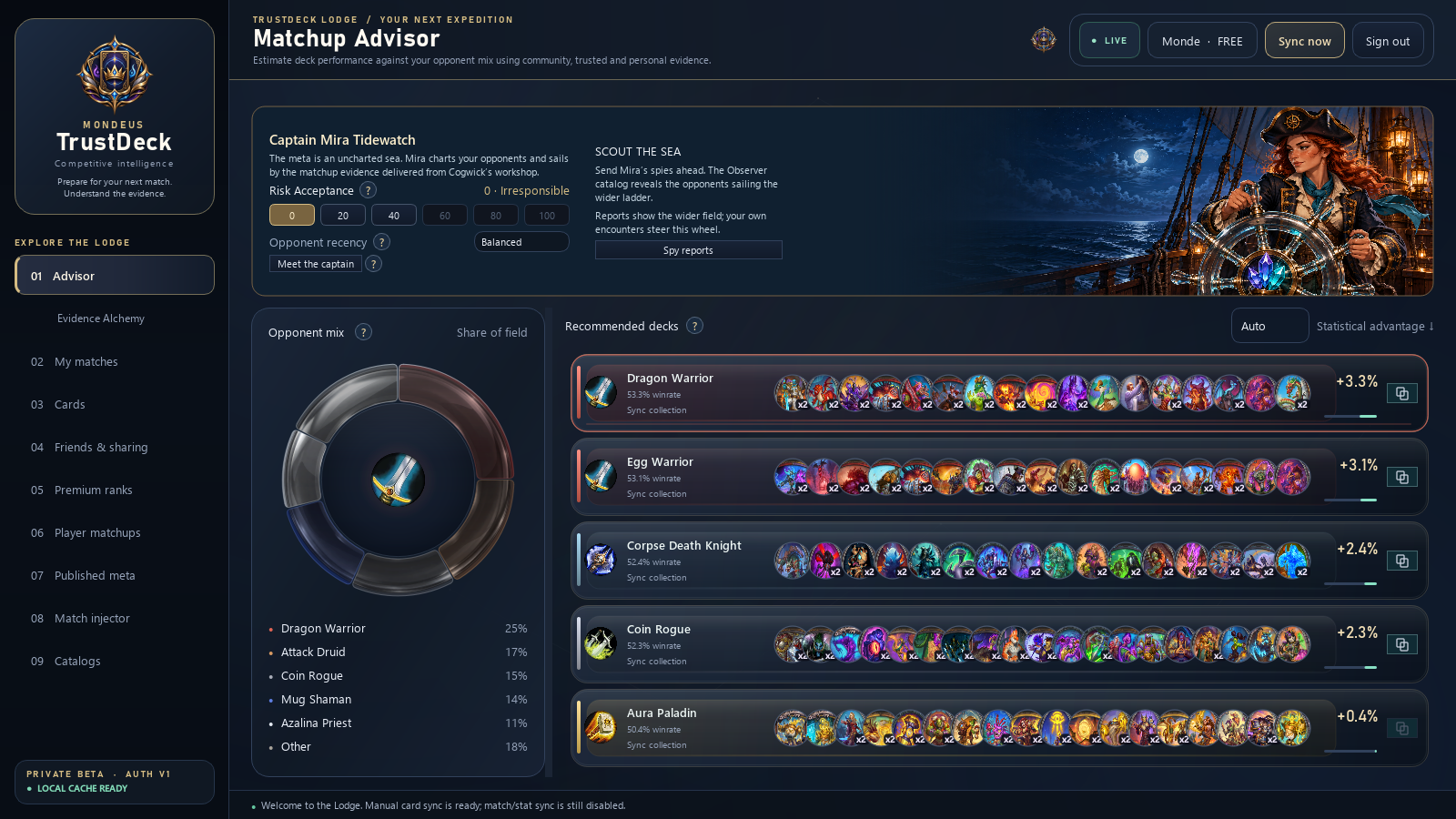
TrustDeck Advisor showing deck recommendations, Global, Trust Group and Personal data sources, and matchup analysis.
A clearer picture before your next match.Demo screenshot · sample data
01 Your matches02 Your trusted players03 A better perspective

FROM DOWNLOAD TO YOUR FIRST MATCH

Get into the game.

One app on your computer.
One server for the whole community.

01 / INSTALL⊞ Windows

Your next session.
Better prepared.

One installer. Everything included. Download TrustDeck, follow the setup wizard, and you’re ready to connect.

  1. 1
    Download the Windows installer.Made for Windows 10 and 11, 64-bit.
  2. 2
    Run TrustDeck-Setup-0.1.1.exe.Choose your folder and follow the setup wizard.
  3. 3
    Open TrustDeck from the Start menu.No Python, terminal commands, or extra downloads.
Windows installer · betaFile checksum ↗

Beta release · Installer is not digitally signed yet. Your account and match history are kept when you uninstall.

02 / CONNECTComing soon

One server.
More perspectives.

The community server will appear here once publicly available. You can install TrustDeck and get ready in the meantime.

Remote connections will be available once the public server address is set up.

  1. 1
    Copy the address above.Once the community server is available.
  2. 2
    Paste it into the Server field.You’ll find it in the TrustDeck sign-in window.
  3. 3
    Choose Create account or Sign in.Your account is created in the app, on the community server.
You don’t need to run a server of your own.

MORE CONTEXT. LESS GUESSWORK.

Play. Learn. Share.

Real results from your matches.
A perspective built together.

/ 01

Let your matches do the talking.

Start detection in My matches. TrustDeck reads Hearthstone’s logs and records the results of your new games.

/ 02

Find your circle of trust.

Add friends by code, accept requests, and enable sharing when you choose. Use Sync to bring your results together.

/ 03

See beyond your last match.

Explore matchups and Advisor recommendations. Adjust the influence of personal, trusted group, and global data.

GOOD TO KNOW

Before your
first game.

Can I connect to the server yet?

Not yet. The administrator is preparing the public address. You can download the app now, and this page will show the address when the server is ready for players.

How do I start tracking matches?

In My matches, enter your exact in-game name / BattleTag, select your Hearthstone folder, and choose Start detection. Power and Decks logging must be enabled in Hearthstone. Detection tracks new games; it doesn’t automatically import your full history.

Can friends automatically see my matches?

No. Friend requests need to be accepted, and sharing is enabled separately in Friends & sharing. You decide whether to upload and share results through Sync.

Do I need a Battle.net account on this website?

No. You create a TrustDeck account inside the desktop app. Don’t use your Battle.net password in TrustDeck. This is an independent project, not affiliated with Blizzard Entertainment.

Why am I getting a connection error?

Check the Server address and your internet connection. The administrator’s server must be running and reachable. The address 127.0.0.1 only works on the computer running the server.